Texel Portal MX: Assembly Guide
Overview
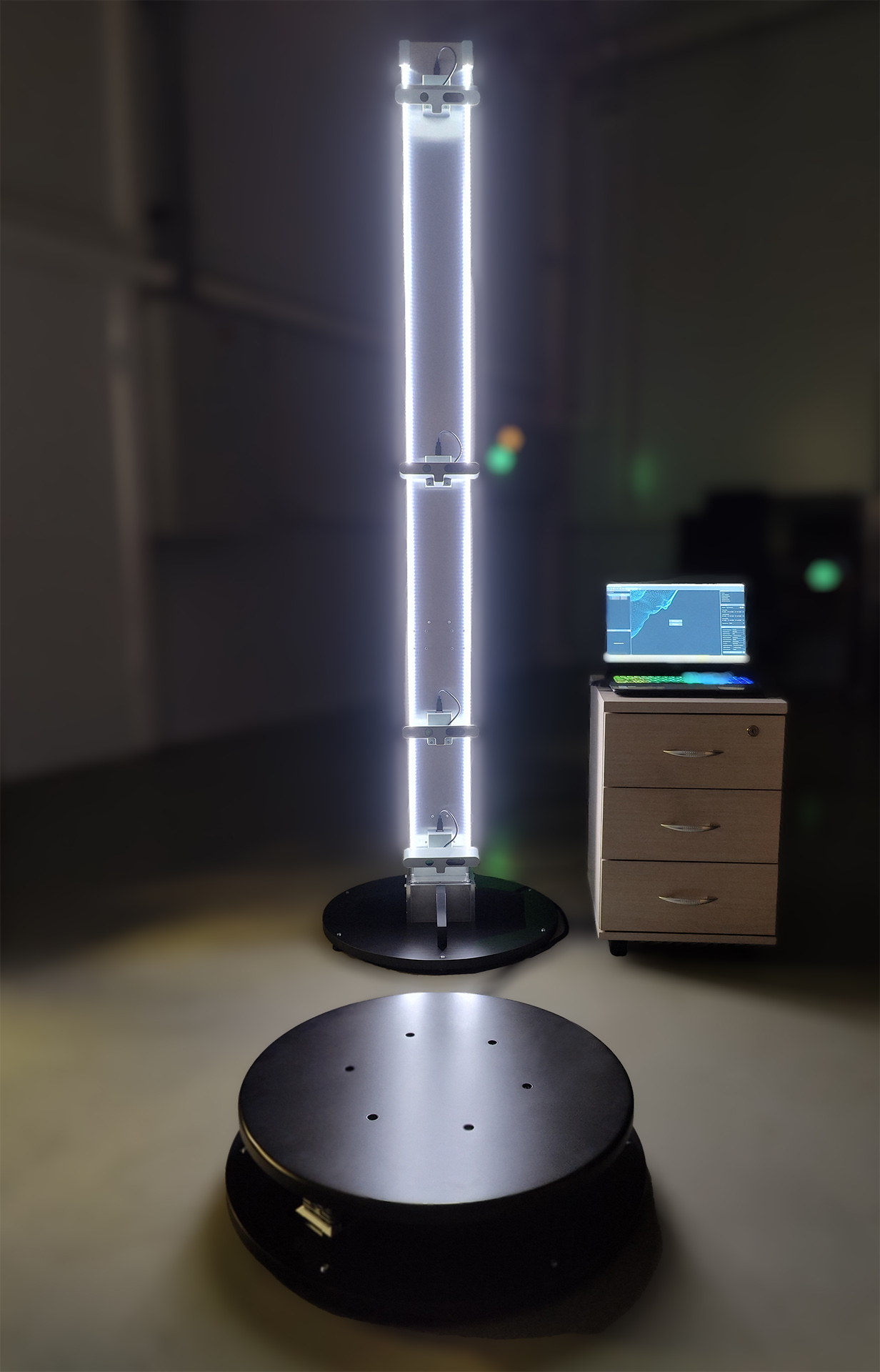
The Texel Portal MX 3D scanner is a hardware and software complex for quick acquisition of color 3D models of people and large objects. The 3D scanner hardware consists of a turntable (rotating platform) and a vertical sensor column, that supports vertical movement of the sensors (RGB-D cameras). The kit may also include a high-performance laptop configured to run Texel software. Texel Portal MX performs fast and smooth object rotation (scanning takes approximately 30 seconds) and provides data acquisition from four depth sensors, which are also equipped with color (RGB) cameras. Acquired video streams are then processed by the Texel software to produce a color 3D scan and other derived data, such as body measurements. Texel Portal MX requires no complex assembly, is easy to operate and provides 3D scanning of people at scale for a variety of use cases.
Fully Assembled View
Unpacking
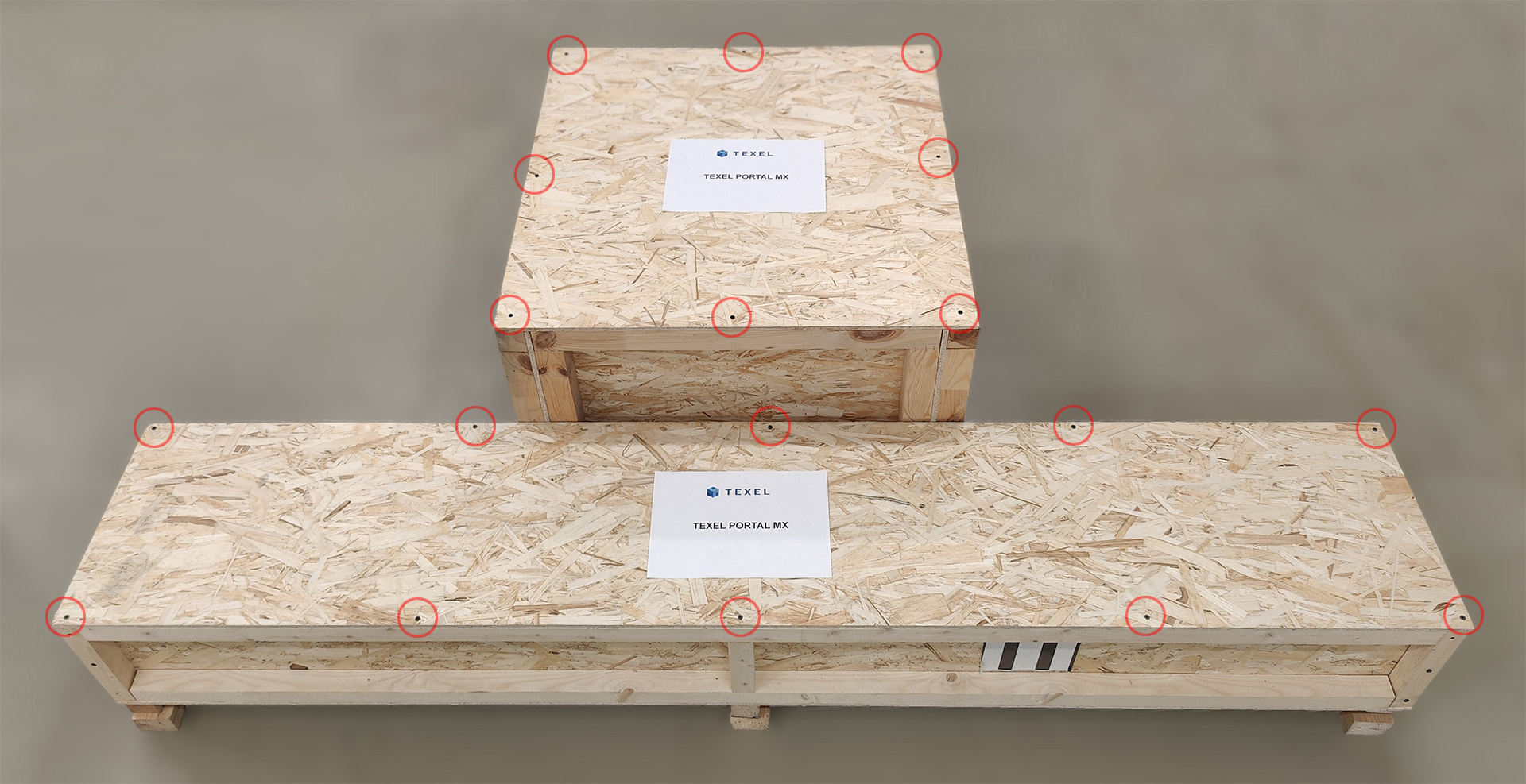
Texel Portal MX is shipped almost completely assembled in two rigid plywood boxes. Individual components of the 3D scanner are protected with bubble wrap, foam polyethylene, cardboard, or other packaging materials. To open the plywood boxes, unscrew the screws on the top lids of the boxes using a screwdriver. The screws holding the top lids are marked with red circles in the photo below:
When taking components of the 3D scanner out of the box, care must be taken to prevent damage to parts, cables, and other equipment components. Care must also be taken when moving the packaging and heavy components of the 3D scanner to avoid injury.
Package Contents
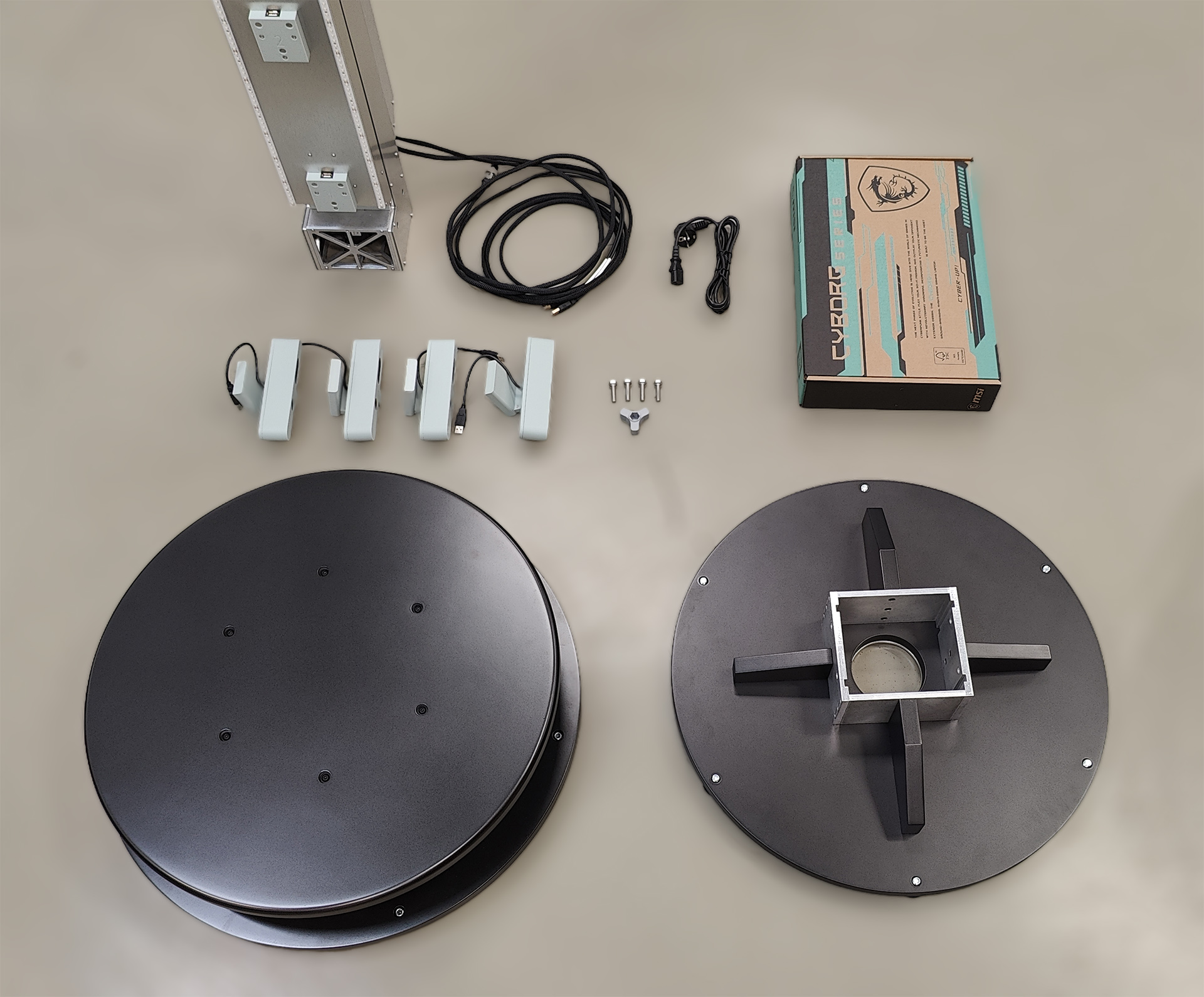
The Texel Portal MX 3D scanner package includes the following items:
- Turntable (rotating platform)
- 3D scanner column with a control unit and magnetic sensor mounts
- Four depth sensors (RGB-D cameras) on magnetic holders
- Scanner column base
- Column mounting hardware (four M8 bolts)
- A 13 mm wrench tool for securing a column
- Power cable
- High-performance laptop (optional)
Please note that individual visual elements or components of the 3D scanner may differ slightly in appearance between different versions of the equipment, but their functionality and consumer properties remain unchanged. We will update this guide if there are significant changes in the design.
Assembly Instructions
3D scanner should be assembled according to the steps below. We recommend strictly following the instructions and not altering the order of steps. All assembly steps must be performed with the device completely disconnected from a power source. Plug the device into a power source only after assembly is complete according to the instructions.
-
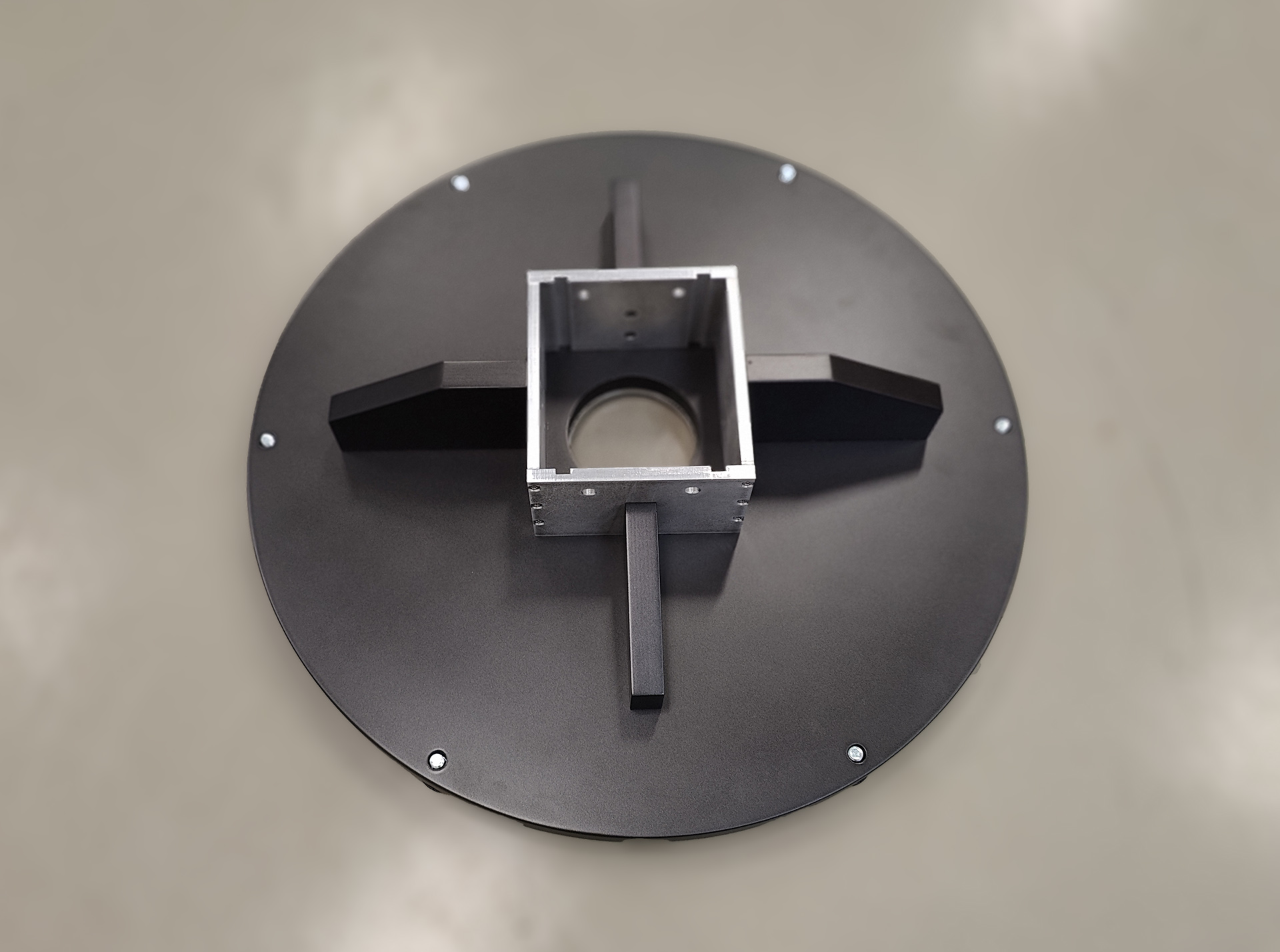
Place the column base on the floor, on a level, solid surface. The maximum height of the assembled 3D scanner is at least 2650 mm. The recommended ceiling height at the installation site is 2800 mm (2.8 m), with an absolute minimum of 2700 mm (2.7 m).
-
Carefully unpack the 3D scanner column (shipped in a separate plywood box):
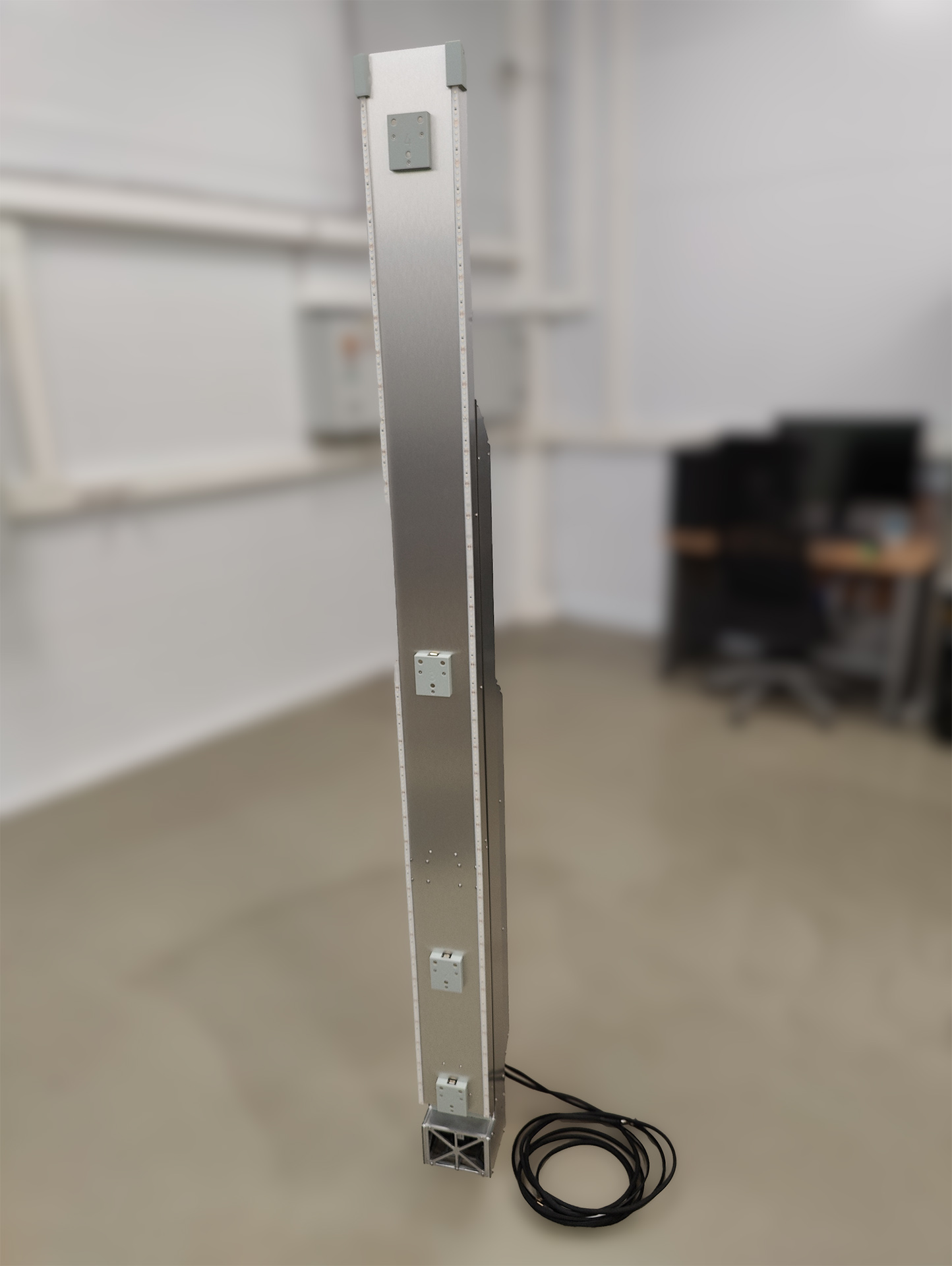
-
Install the column into the mounting bracket on the column base. Please be careful not to damage the cables.
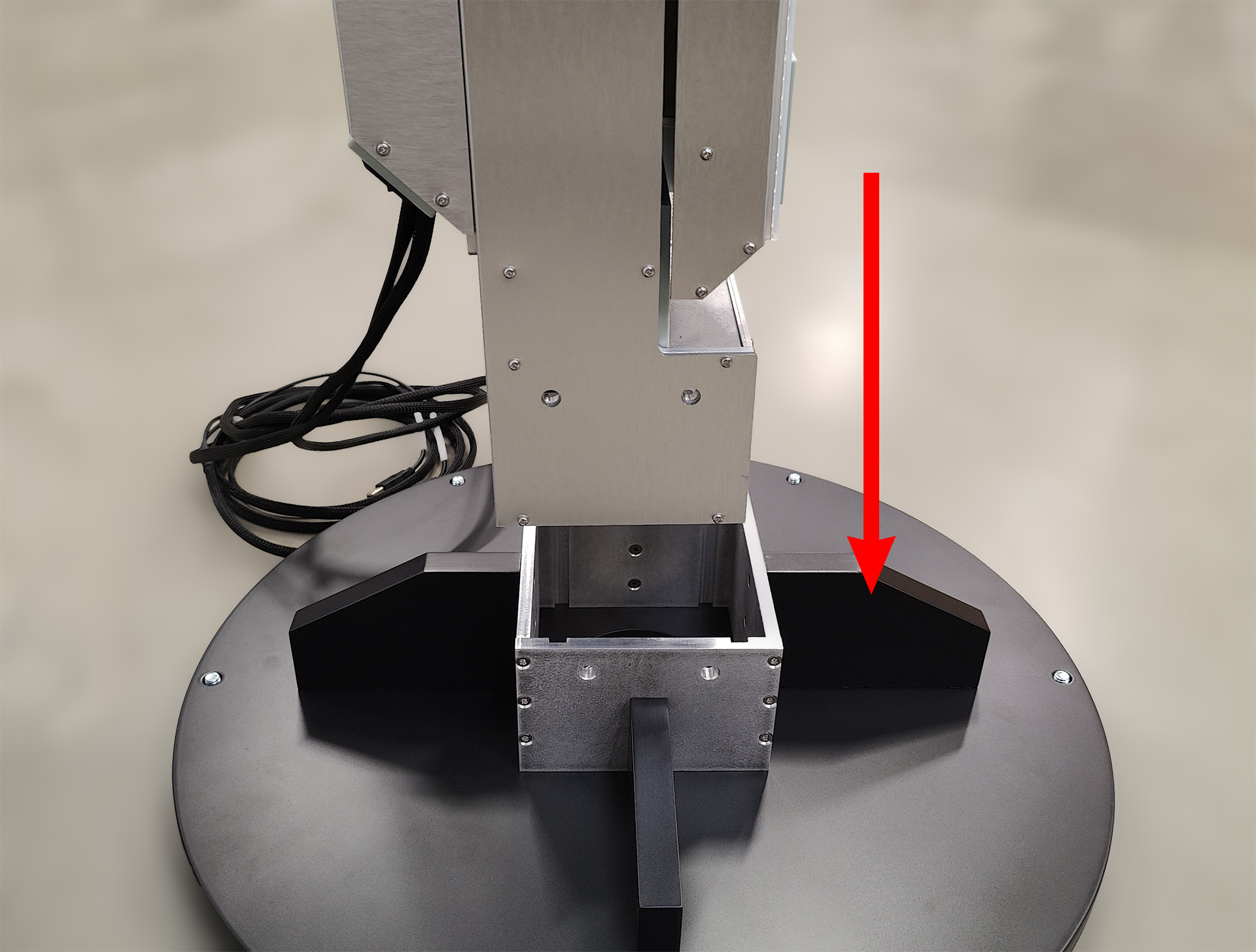
-
Secure the column with four M8 bolts (two on each side) using the included 13 mm wrench tool:
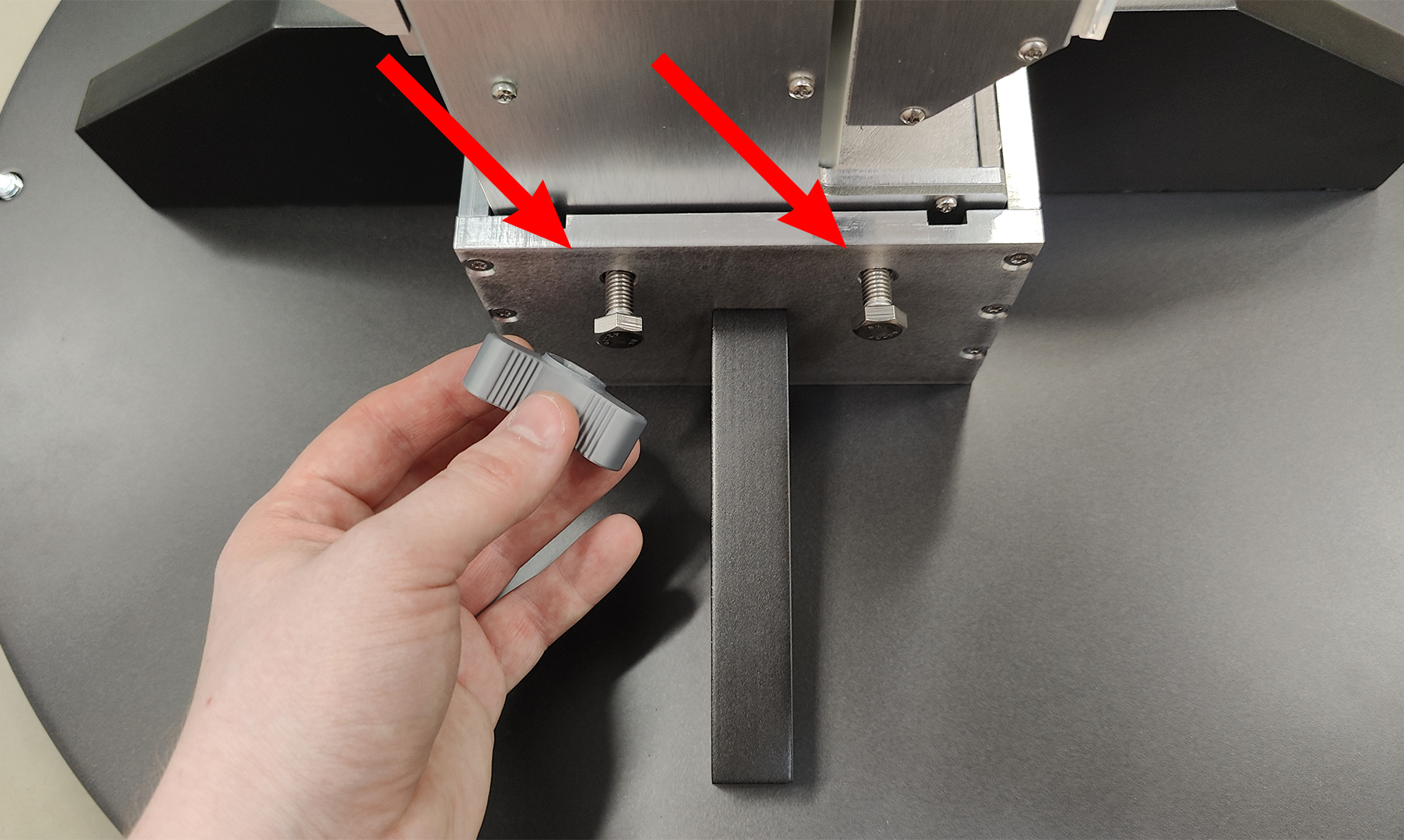
-
Make sure the column is level and all feet of the base are touching the floor. If necessary, adjust the feet by rotating them. A spirit level can be used to check if the column is level.
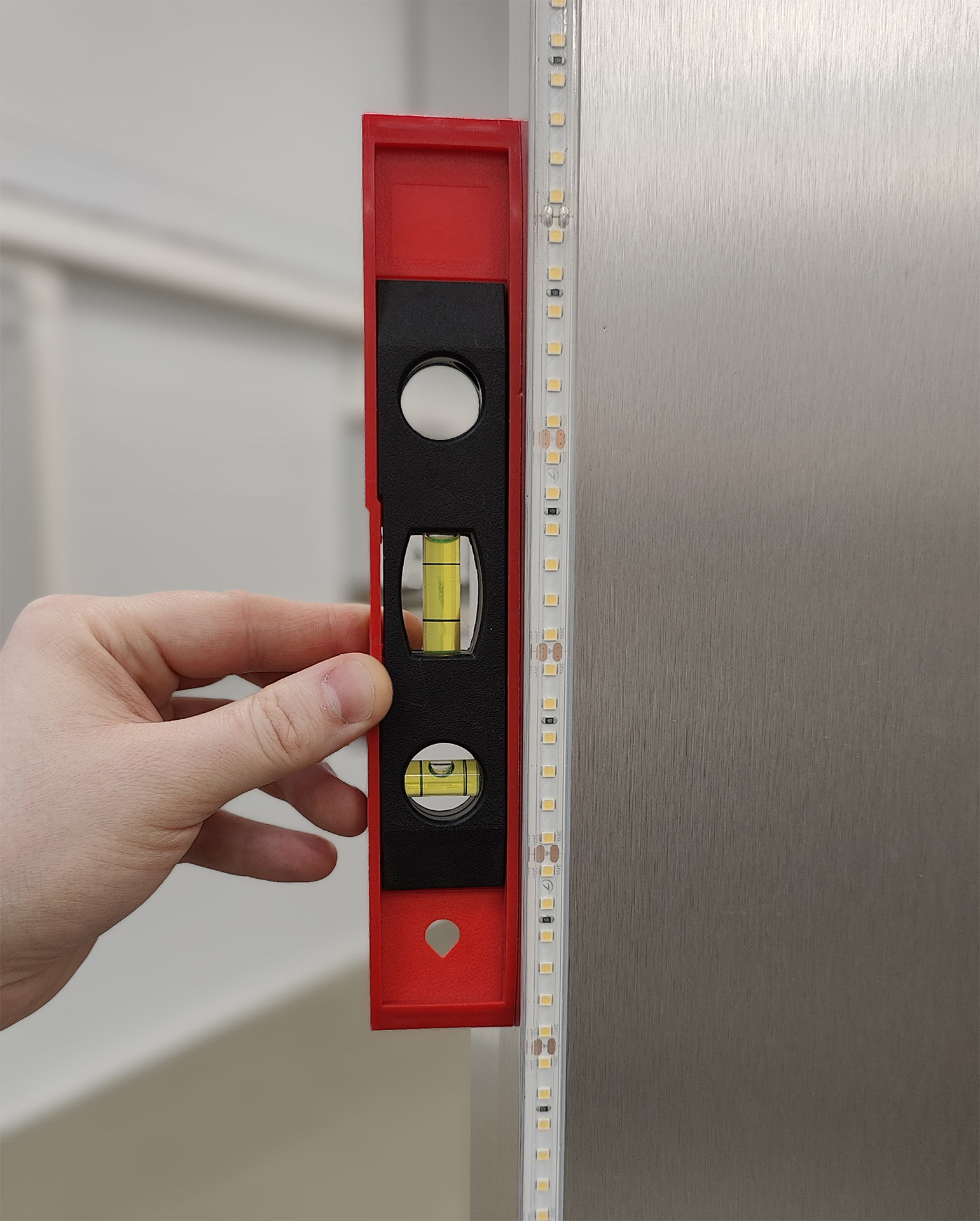
-
Connect the power cable to the column:
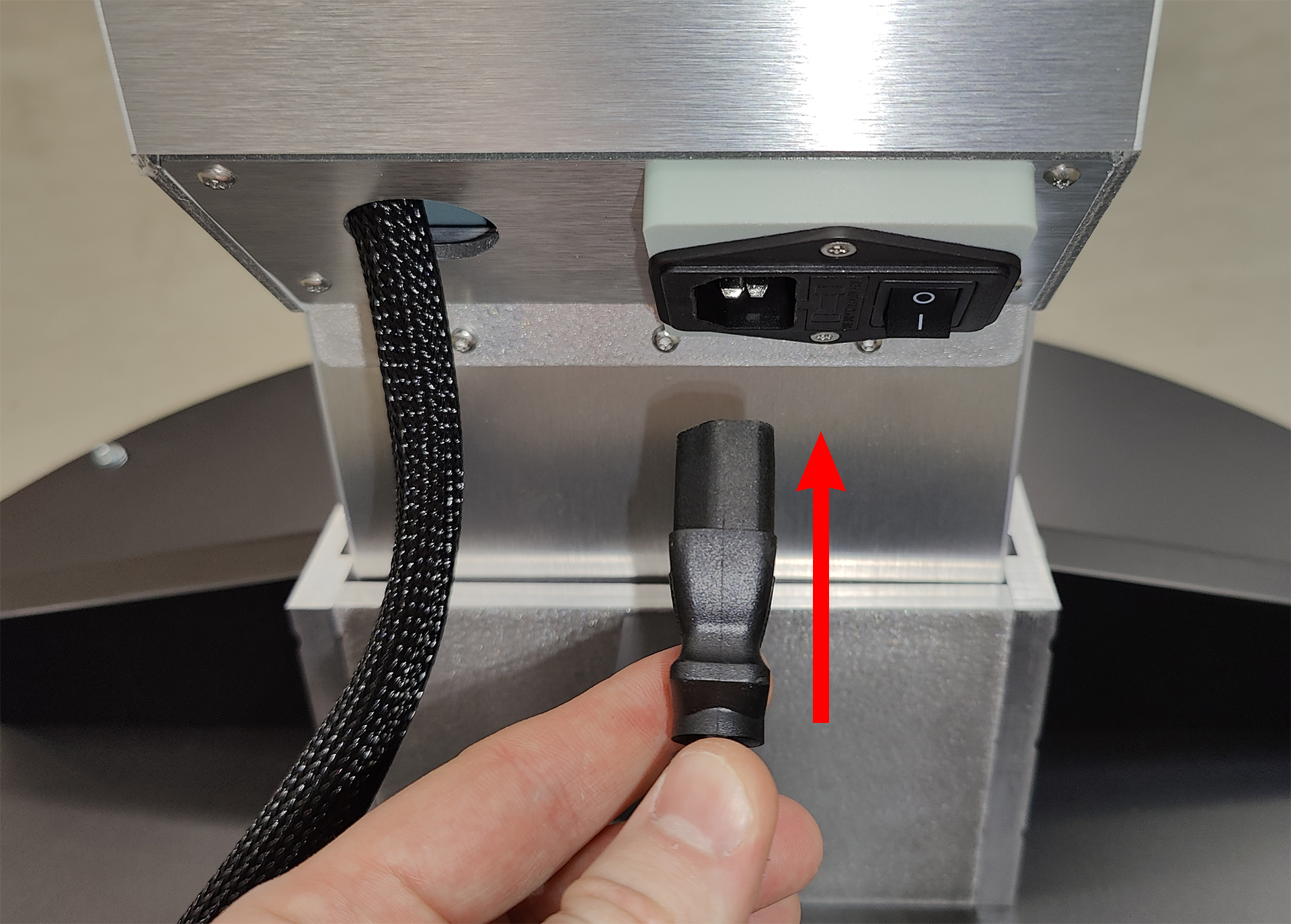
-
Attach the four depth sensors to the magnetic mounts on the column, paying attention to the numbering (the numbers on the column mounts and on the sensor brackets must match), and then connect the USB connectors of the sensors to the sockets on the column mounts:
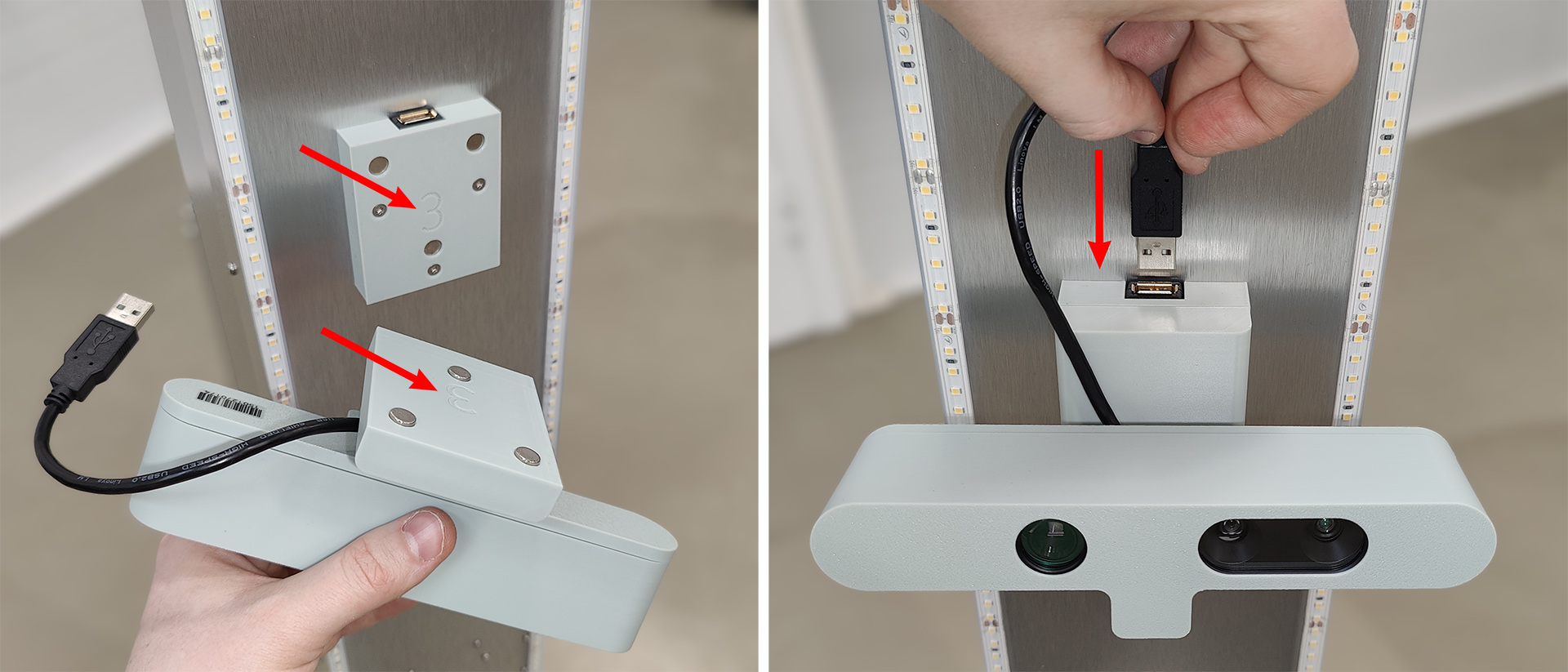
Please note that Texel Portal MX 3D scanners can be equipped with various depth sensors, but the magnetic mounts are always standard.
To remove the sensor, first disconnect the USB connector and then pull the bottom of the bracket up and forward, as shown below:
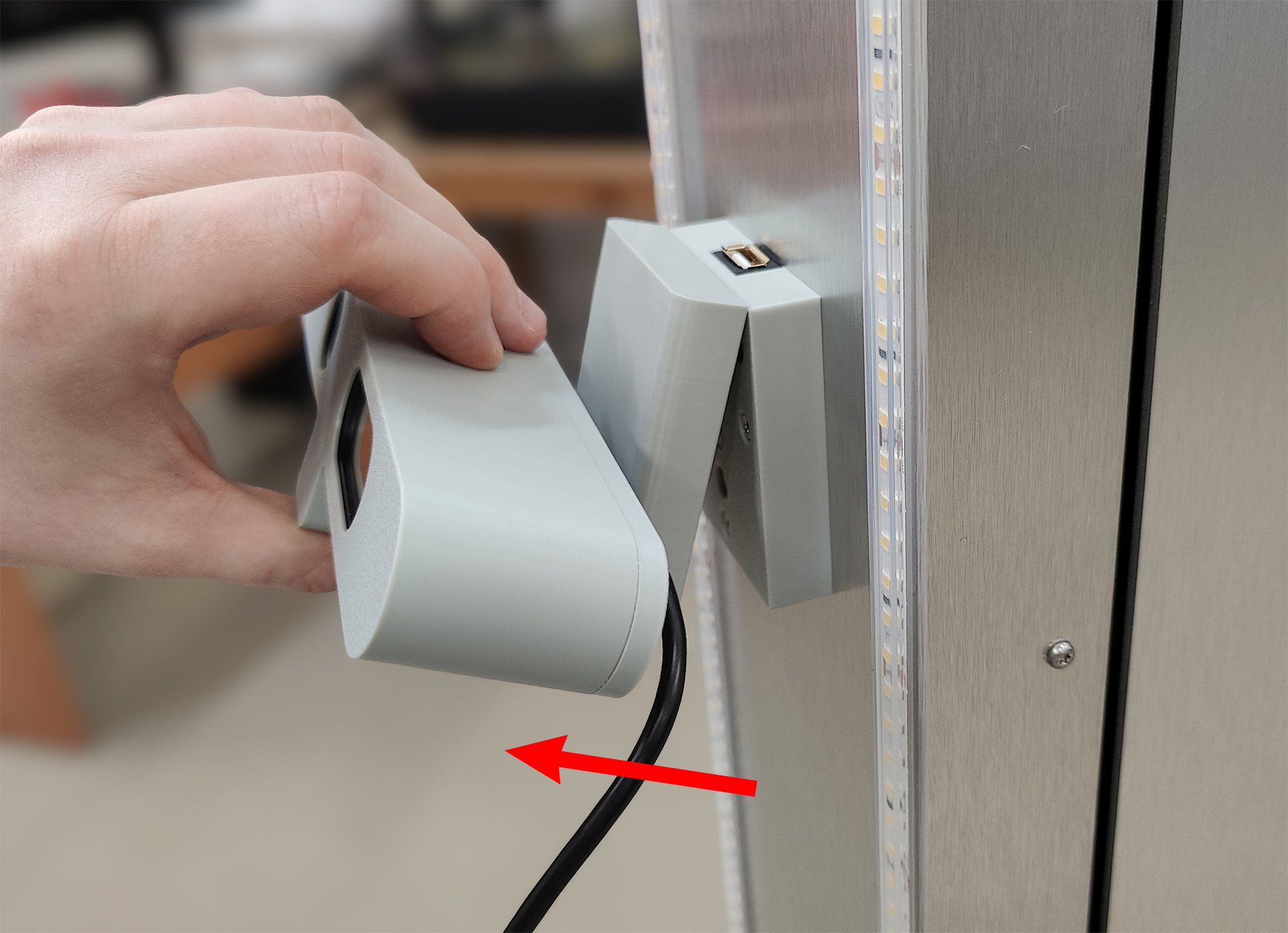
-
Place the turntable on the floor, on a level, solid surface, in front of the 3D scanner column. The connector panel should be oriented toward the column, the center of the turntable should be aligned to the sensors, and the distance from the edge of the turntable to the edge of the column base should be 20 to 40 cm.
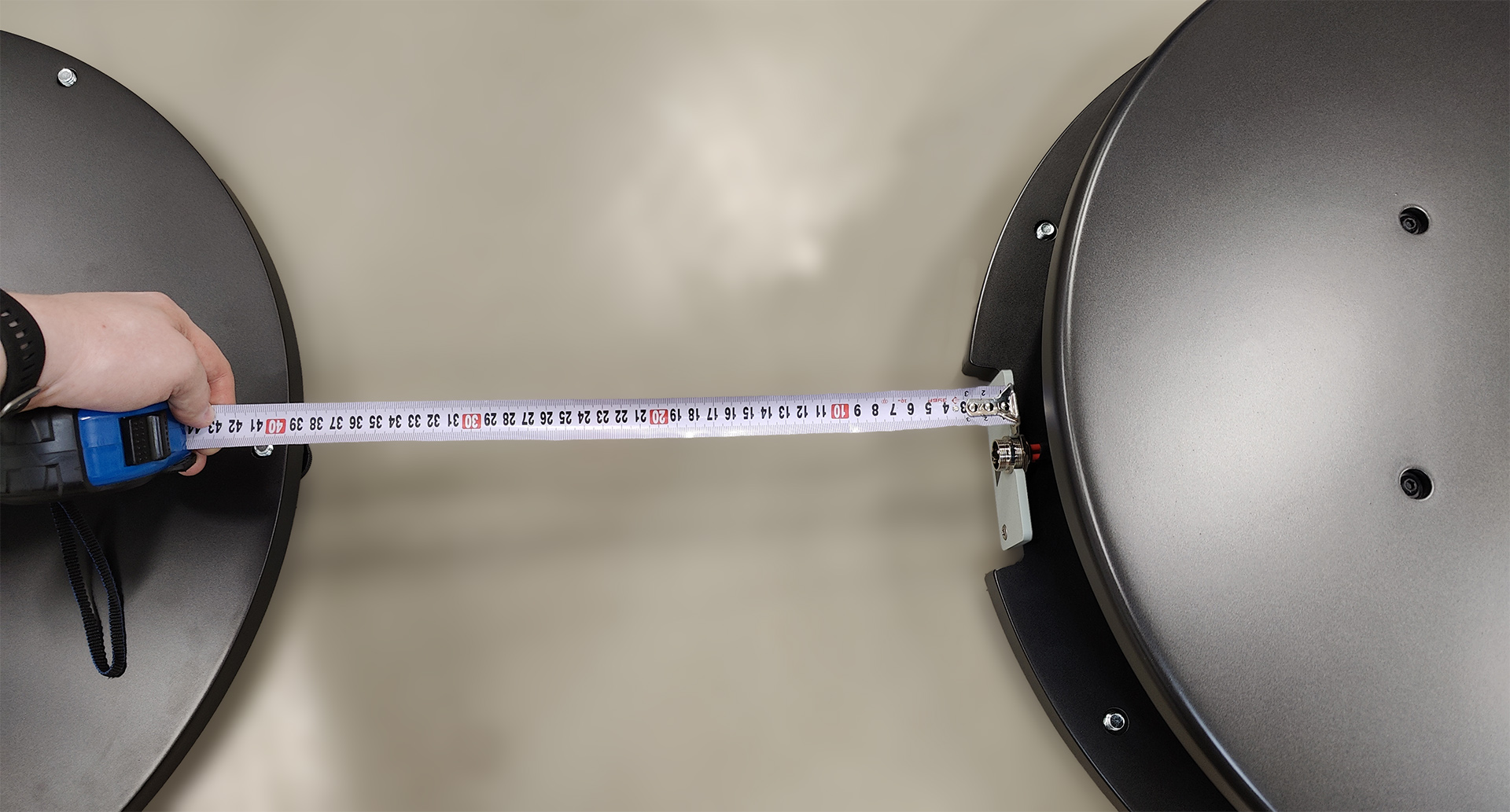
The distance of 20 cm provides slightly better details if the person being scanned is in a compact pose. For A-pose scanning (for example, for subsequent automated body measurements), a distance of 40 cm is required to ensure a necessary field of view.
-
Connect the turntable cable to the socket on the panel (it can only be inserted in one position; there is a special notch on the connector body), and then tighten the locking ring to prevent the cable from being disconnected.
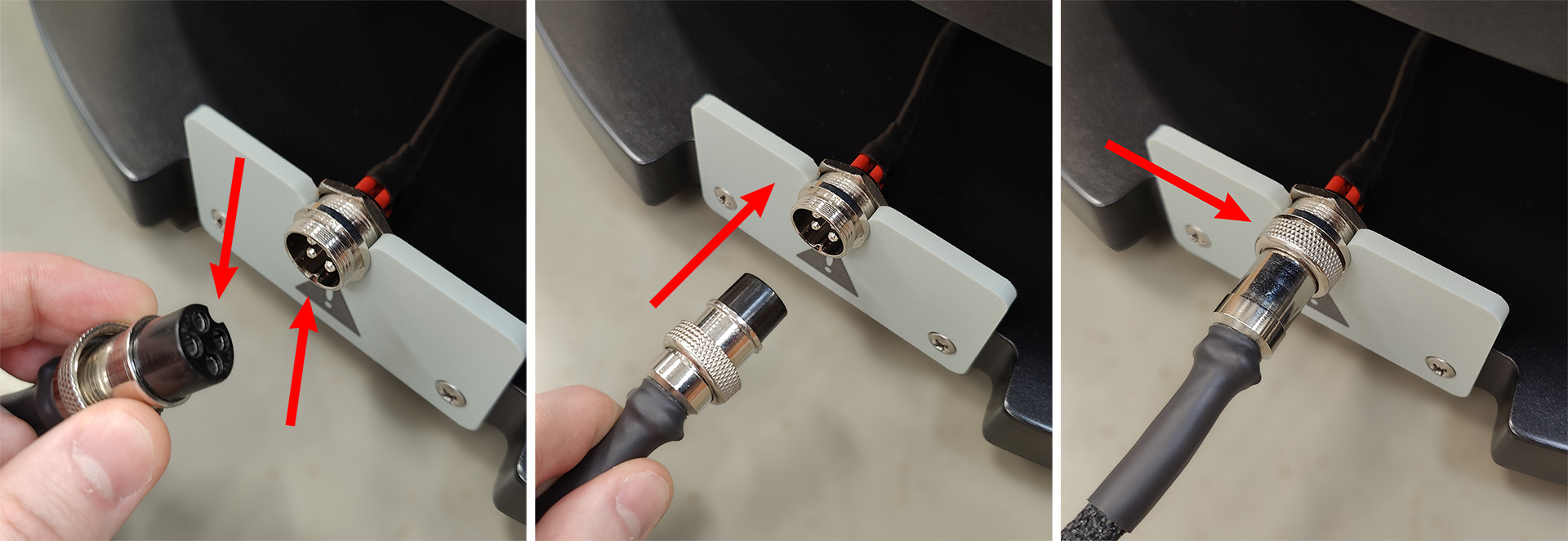
Please note: connecting and disconnecting the turntable cable is only allowed when the device is completely powered off. Otherwise, there is a risk of damaging the control electronics.
-
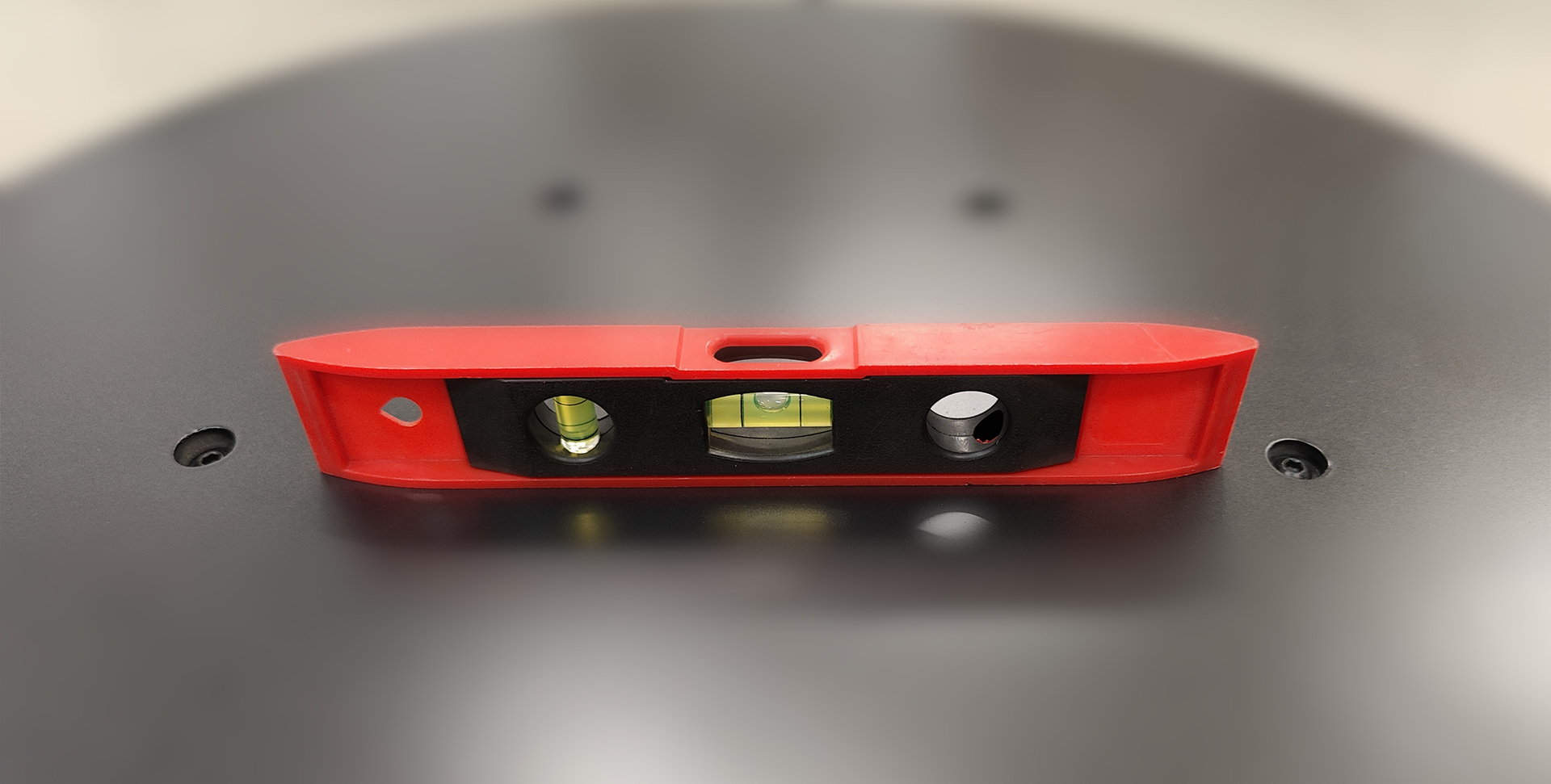
Make sure the turntable is level and all feet are touching the floor. If necessary, adjust the feet by rotating them. A spirit level can be used to check if the turntable is level.
-
Connect the power cable and the two USB cables to the laptop. It is recommended to connect the USB cables to different sides of the laptop (one cable on the left, one on the right):
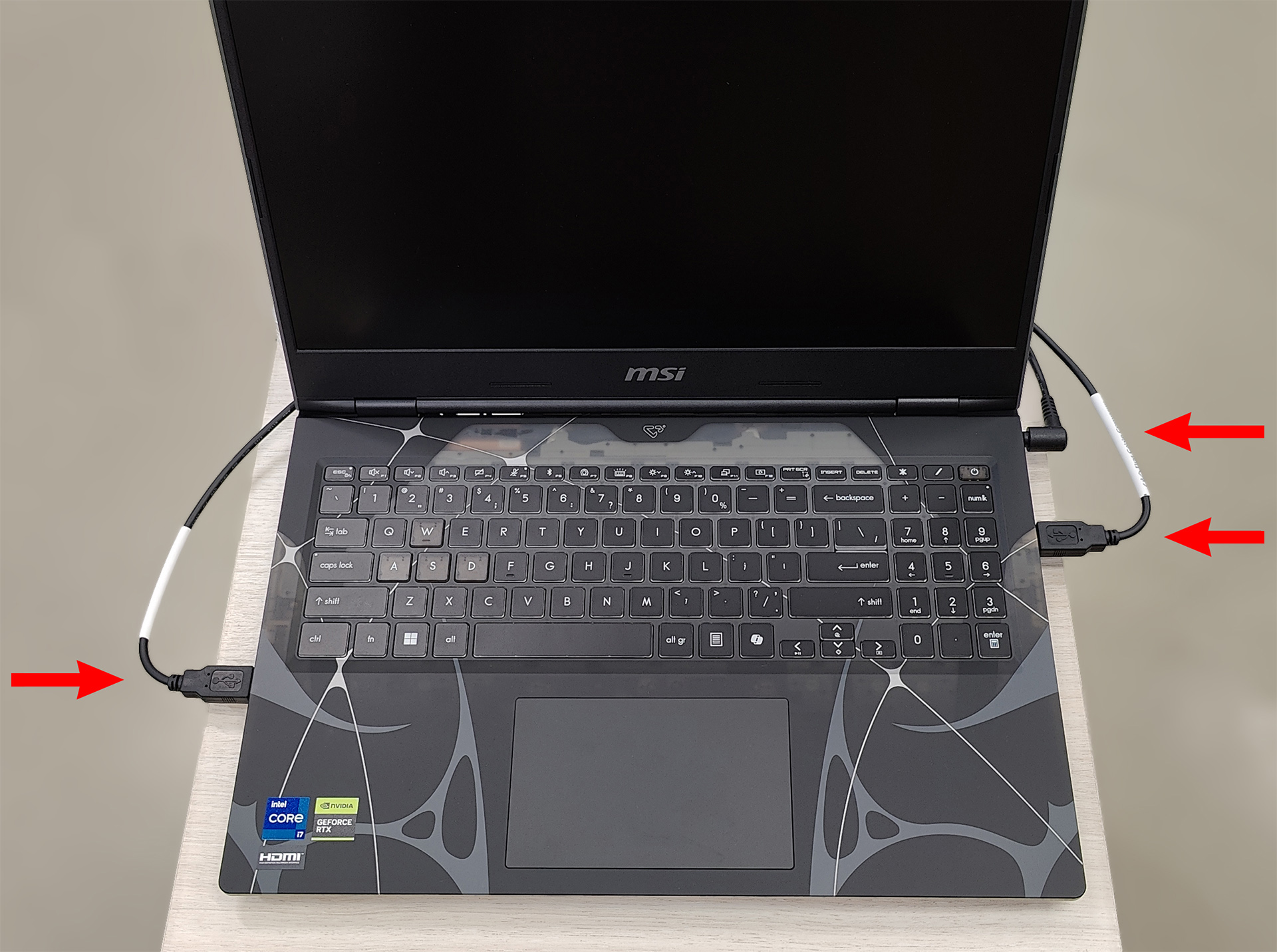
Also, please note that your laptop model may differ from the image, so the location of USB ports and power connector may be different.
Preparing 3D Scanner For Operation
The assembly process of the Texel Portal MX 3D scanner is now complete. There are few simple steps left to fully prepare the scanner for operation:
-
Connect the laptop to a power source and turn it on.
-
Connect the 3D scanner power cable to a power source.
-
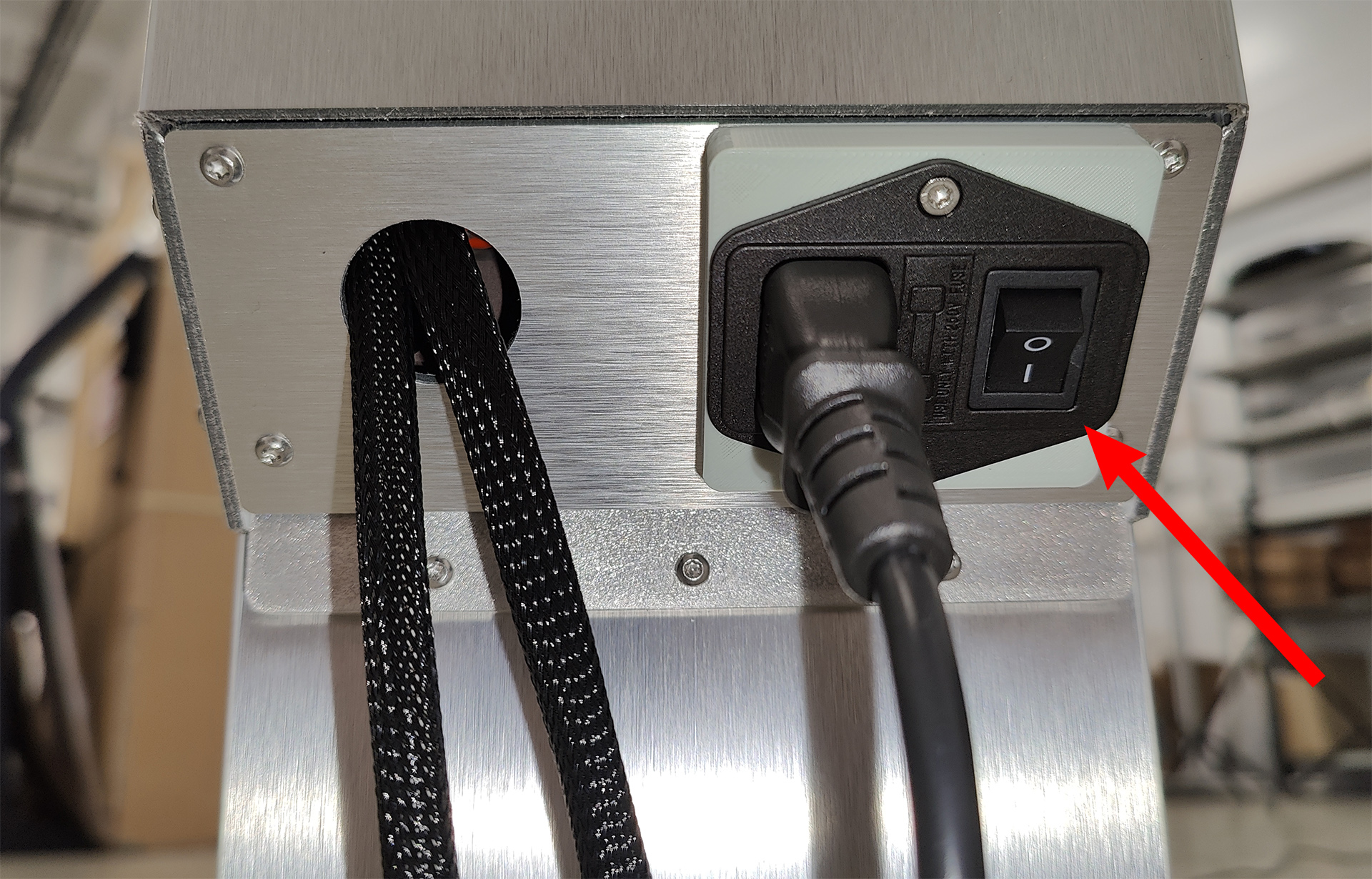
Turn on the power for the control unit at the bottom of the column:
-
After completing the above steps, the LED on the control panel will start flashing red, indicating that the 3D scanner is waiting for initialization (determining its home position). To initialize, press the button on the control panel:
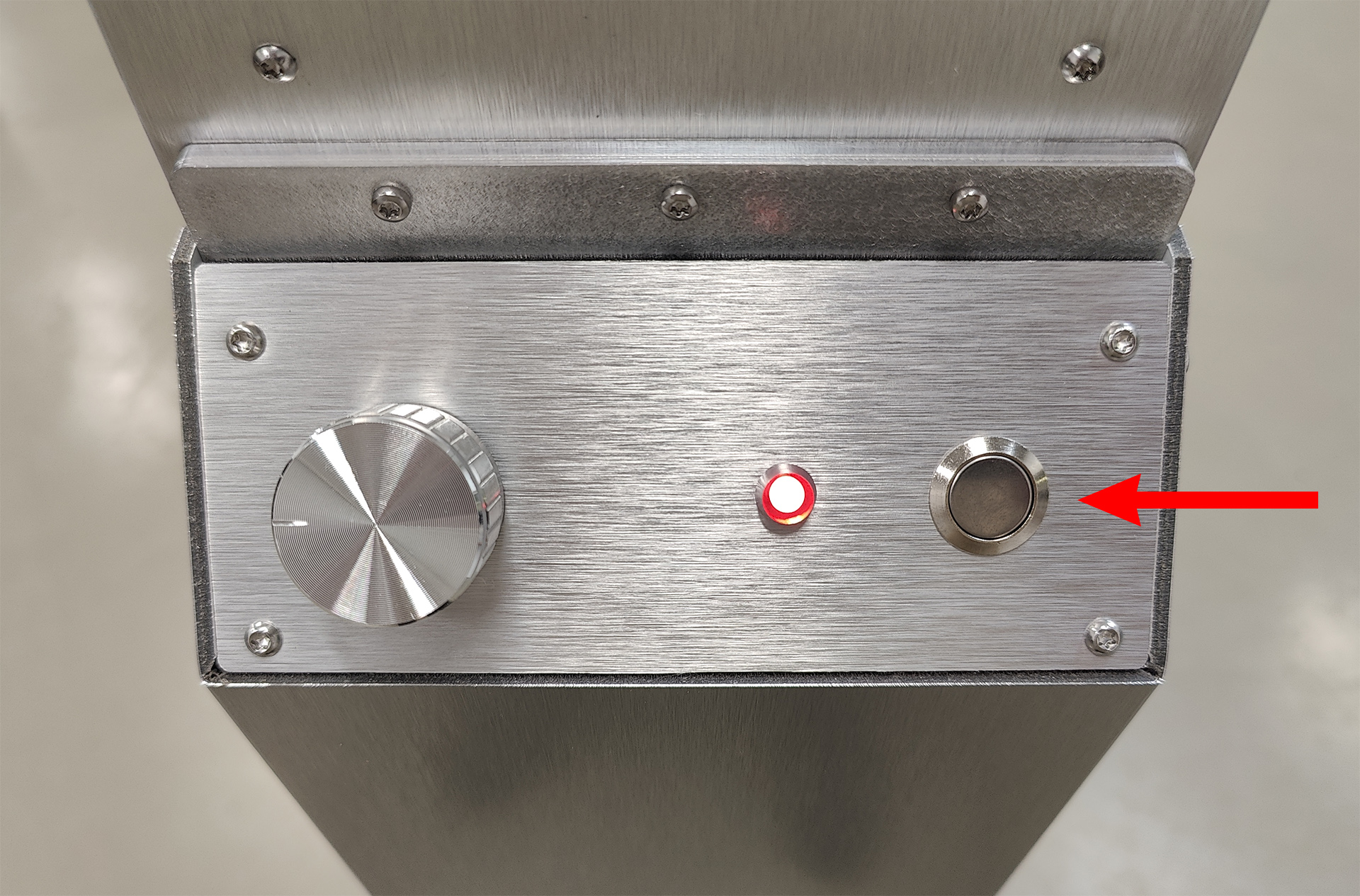
If the 3D scanner is moving (during initialization or during scanning), pressing the button performs an emergency stop (you can also stop the 3D scanner from the software on your laptop).
-
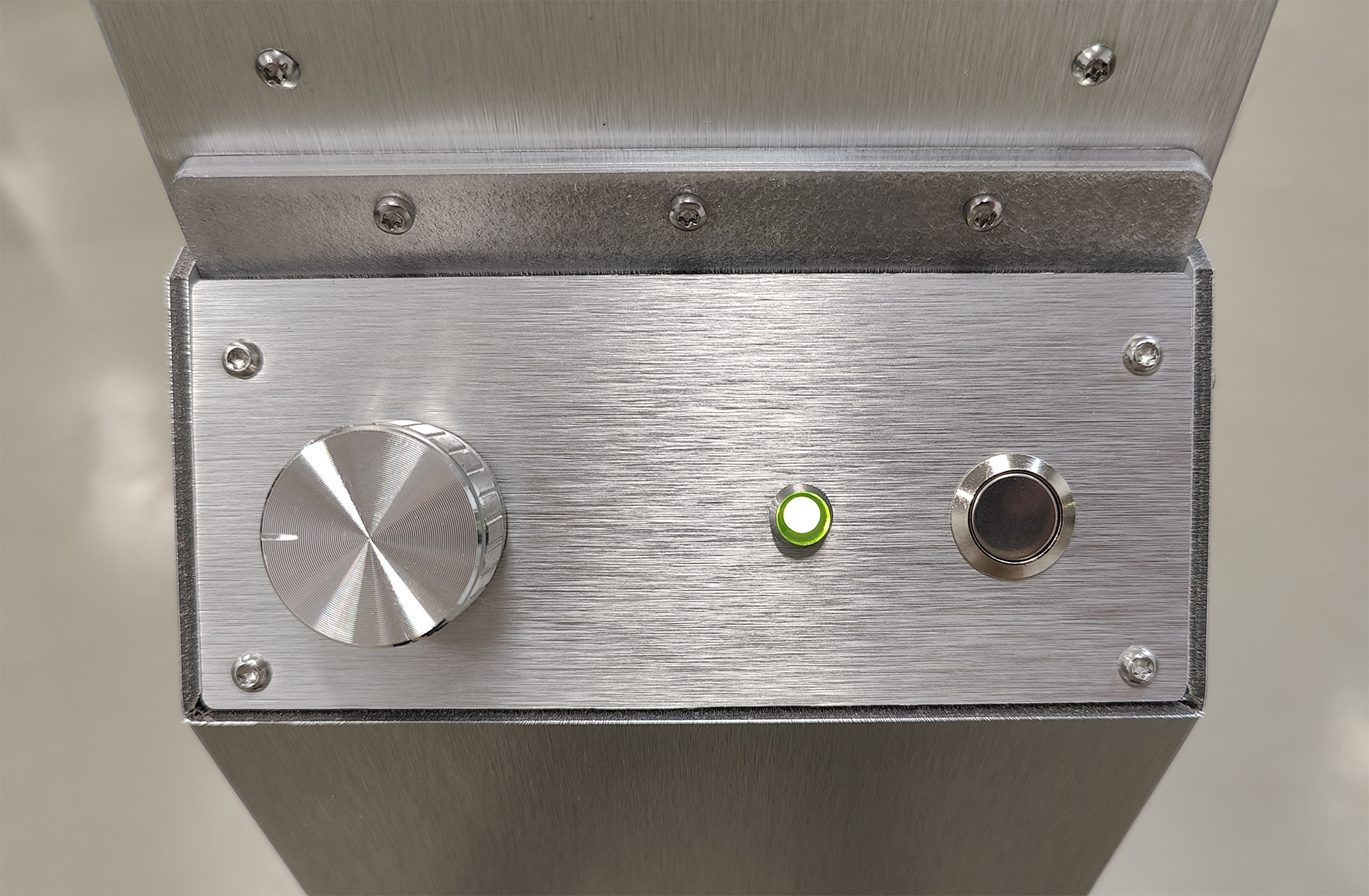
Once initialization is complete, the LED will turn green and the 3D scanner will be ready for use:
-
To adjust the brightness of the built-in lighting, rotate the brightness knob on the left:
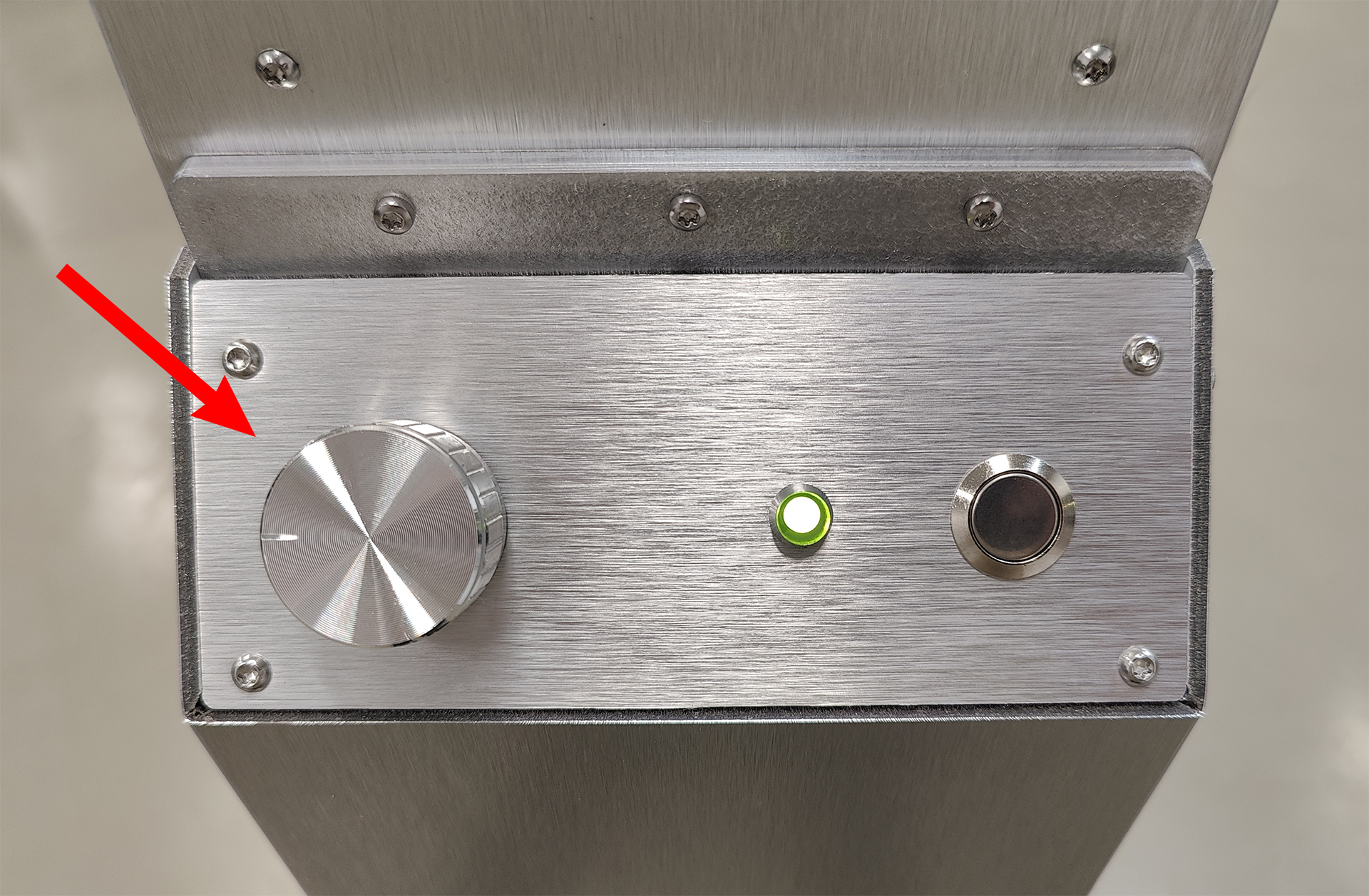
At this stage, your Texel Portal MX 3D scanner is fully prepared to work with the Texel software installed on your laptop. Before starting 3D scanning for the first time, make sure that there are no obstacles in the upward movement path of the 3D scanner column (sufficient ceiling height).
If you need to disassemble the scanner (e.g. for storage or transportation), we recommend following the steps described in this guide in a reverse order. This will simplify both the disassembly and subsequent reassembly process of the 3D scanner.